
Okta Onboarding Instructions
1. The first step in this process is to log on to our customized Okta Portal.
NOTE: We request that you browse to this URL with a computer or tablet and have your phone
handy for the onboarding process.
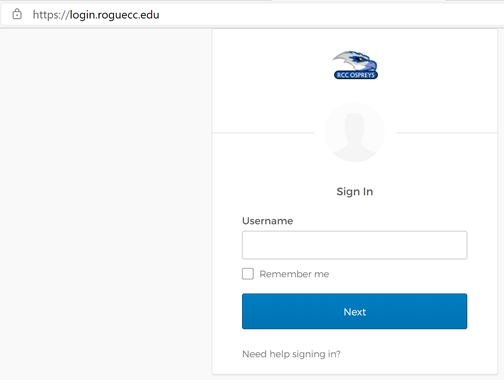
2. You will type in your RCC email address as your username and click "Next"
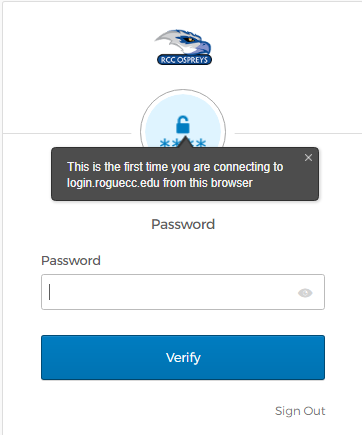 3. Once you type in your password and click "Verify," you will be taken to a page
to set up your MFA
3. Once you type in your password and click "Verify," you will be taken to a page
to set up your MFA
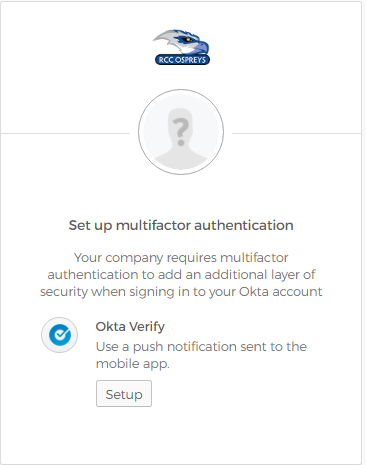
4. You will have the "Okta Verify" option along with SMS (text messaging), Google Authenticator, and voice calling. Note that both Okta Verify and Google Authenticator will require an app to be installed on your smartphone. We will be picturing the Okta Verify option in this setup.
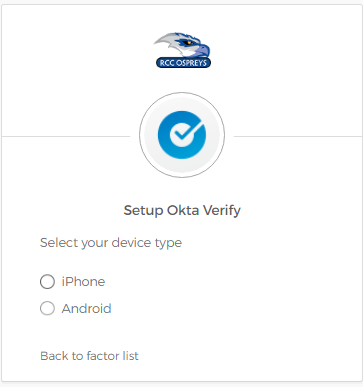
5. You will be walked thru the download and setup process and will need to scan a QR code with your phone from the Okta Verify application. If you chose one of the other options you will receive step-by-steps for their verifications.
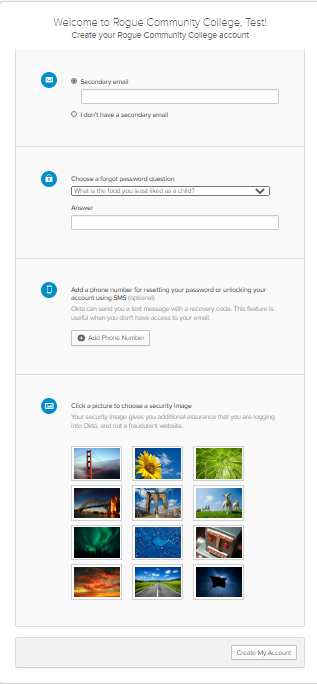
6. Once verified, you will be taken to a page that will allow you to create your account and provide whatever verification methods you so choose. When finished choosing you can click on "Create My Account" at the bottom of the page.
7. You will then be taken to a landing page that currently houses the Microsoft Office Suite. As we continue our setup process you will be able to go to this page and find many of the applications you can use to do your work. Once this is complete MFA will be required to log onto online Outlook/Office 365. You can close this window for now.
If you run into any issues, please contact ithelpmeFREERogue%20Community%20College for assistance.